
Forza Horizon 6 AutoDrive Settings and Tips
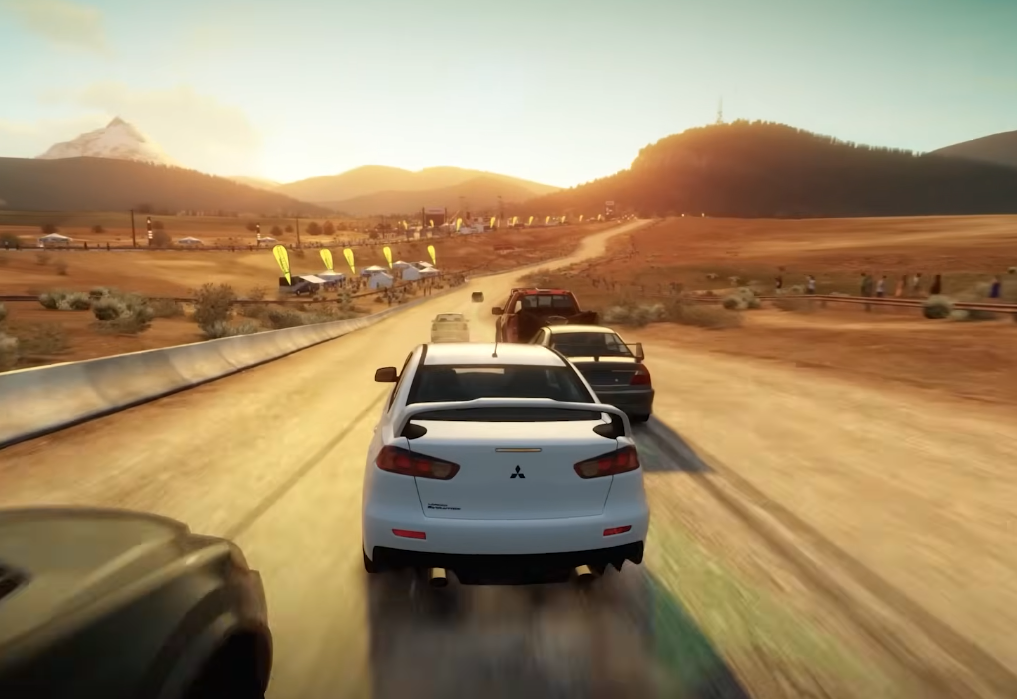
Forza Horizon 6, set in Japan, brings the AutoDrive feature—a way to let the game’s AI drive for you while you soak in the scenery. Whether you’re cruising through neon-lit Tokyo streets or winding mountain roads, AutoDrive makes exploring FH6’s dense, vertical map a breeze.
Core AutoDrive Settings
Activation:
First, drop a Waypoint on the world map. Then, open the ANNA Satnav menu (D-Pad) and select AutoDrive. The AI will take control of steering, braking, and acceleration, guiding you safely to your destination.
Cinematic Mode:
While AutoDrive is running, press LB on your controller to switch to Cinematic Mode. This hides the HUD and cycles through movie-like camera angles, letting you enjoy Tokyo’s neon signs, Kyoto’s temples, or the Japanese Alps like a real scenic tour.
Necessary Assists:
For the smoothest experience, set Driving Line to “Full.” If Braking Assist is on, AutoDrive might need some manual throttle input to keep moving smoothly, especially around hairpins or steep descents.
Tips for Best Results
Ideal Road Types:
AutoDrive thrives on highways and wide city streets. Tight mountain passes (Touge) or rough off-road trails can trip it up, so be ready to take over if you want maximum efficiency.
“Screensaver” Use:
You can set a custom route with zero opponents and multiple laps, then engage AutoDrive. Your car will loop through the course automatically—a perfect way to show off your favorite cars while AFK or capturing cool footage.
Accessibility Benefits:
Beyond convenience, AutoDrive is part of FH6’s accessibility suite, which includes features like Car Proximity Radar and sign language support. It helps players with mobility or reaction-time challenges enjoy the full experience.

 English
 Arabic
 French
 Spanish
 Portuguese
 Deutsch
 Turkish
 Dutch
Dutch
 Russian
 Romaian
 Portuguese (Brazil)
 Greek
Greek
