
Used Laptop Checklist: Avoid Common Mistakes
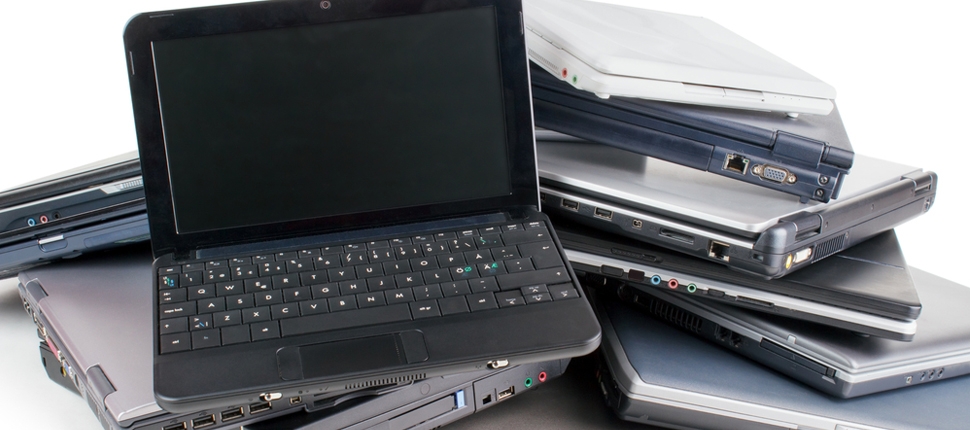
Buying a used laptop can be a smart way to save money while getting a capable device for work, study, entertainment, or everyday tasks. However, used laptops can have hidden problems that may not be obvious at first glance. Without proper checks, you could end up with poor battery life, damaged hardware, slow performance, or expensive repairs. Following a simple used laptop checklist can help you make a safer and more informed purchase.
Check the Laptop's Physical Condition
Start by carefully examining the laptop's exterior. Look for cracks, dents, loose panels, damaged hinges, and signs of heavy wear. Minor scratches are usually cosmetic, but significant physical damage could indicate that the laptop has been dropped or improperly handled. Pay particular attention to the corners and hinges because damage in these areas can affect the laptop's durability.
Open and close the lid several times to make sure the hinges move smoothly. The screen should remain firmly in position without excessive movement. Also inspect the keyboard, touchpad, and palm rest for signs of damage or unusual wear.
Test the Screen
The display is one of the most important components to check before buying a used laptop. Turn the laptop on and examine the screen carefully for dead pixels, flickering, discolouration, lines, or unusually bright or dark areas. Open different backgrounds and colours if possible because some display problems are easier to notice against specific backgrounds.
Adjust the screen brightness through its available levels and make sure the display responds correctly. If the laptop has a touchscreen, test different areas of the screen to confirm that touch input works properly.
Check the Keyboard and Touchpad
A faulty keyboard or touchpad can make everyday laptop use frustrating. Open a text editor and test every important key, including letters, numbers, function keys, arrow keys, Enter, Backspace, and the Space bar. Make sure keys respond correctly and do not stick.
Test the touchpad by moving the cursor across the screen and trying basic gestures such as scrolling and clicking. If the laptop includes physical mouse buttons, check that they work consistently.
Check Battery Health
Battery condition is particularly important when purchasing a used laptop. Older batteries may have significantly reduced capacity, meaning the laptop may need to remain connected to a charger for most of the day.
Ask the seller about the battery condition and, where possible, check the laptop's battery health information. You can also disconnect the charger and use the laptop for a short period to see whether the battery percentage drops unusually quickly. A battery that loses charge very rapidly may need replacement.
Check Performance and Specifications
Verify that the laptop's actual specifications match the seller's description. Check the processor model, RAM capacity, storage type, and storage capacity through the operating system's settings.
For everyday work and study, sufficient RAM and an SSD can make a major difference to responsiveness. If the laptop takes an unusually long time to start applications or frequently freezes, investigate the cause before purchasing.
Test the Ports and Connectivity
Used laptops can develop problems with their physical ports over time. Test the USB ports, headphone jack, charging port, HDMI or other display outputs, and memory card slot if available.
Also test Wi-Fi and Bluetooth to make sure wireless connections work correctly. Connecting the laptop to a network and pairing a Bluetooth device can help identify connectivity problems before you complete the purchase.
Check the Storage Drive
The storage drive contains the operating system, applications, and personal files, so its condition matters. If the laptop uses an SSD, check its health where possible. Unusual noises may indicate problems with an older mechanical hard drive.
Make sure the storage capacity is suitable for your needs. A laptop advertised with a specific amount of storage should have the expected capacity available after accounting for the operating system and system files.
Check the Operating System and Security
Before buying a used laptop, make sure the operating system is properly activated and can receive security updates. Avoid devices that have suspicious software, unknown administrator accounts, or signs of malware.
If you purchase the laptop from a private seller, it is important to ensure that the previous owner's accounts and personal data have been removed. Ideally, the laptop should be reset so that you can configure it as a new device.
Ask About the Laptop's History
If possible, ask the seller how long they have owned the laptop and why they are selling it. Find out whether it has previously required repairs or had problems with the battery, screen, keyboard, or motherboard.
A seller who can provide clear information about the laptop's history may give you greater confidence in the purchase. If the seller avoids basic questions or refuses to allow you to test the laptop, consider looking elsewhere.
Check the Price and Compare Options
Do not judge a used laptop solely by its advertised price. Compare the device with similar models based on processor, RAM, storage, age, condition, battery health, and included accessories.
A very cheap laptop may seem attractive, but it could require costly repairs or upgrades. Spending slightly more on a better-maintained device with stronger specifications and a reliable seller can provide better value in the long term.
Avoid Common Used Laptop Buying Mistakes
The biggest mistake is rushing into a purchase without testing the device. Buyers should avoid relying only on photographs or the seller's description. Always inspect the laptop carefully and test as many features as possible.
Another common mistake is ignoring battery health, checking only the external appearance, or failing to confirm the actual specifications. It is also important not to overlook warranty or return options when buying from a professional seller.
Final Thoughts
A used laptop can offer excellent value when you know what to check before buying. Inspect the physical condition, test the screen and keyboard, check battery health, verify the specifications, test ports and connectivity, and review the operating system and storage condition.
Using a proper used laptop checklist can help you avoid common mistakes and reduce the risk of purchasing a device with hidden problems. Taking a little extra time to test and compare the laptop can help you find a reliable computer that meets your needs and fits your budget.

 English
 Arabic
 French
 Spanish
 Portuguese
 Turkish
 Dutch
Dutch
 Italiano
 Russian
 Romaian
 Portuguese (Brazil)
 Greek
Greek
